
Appearance & Accessibility
Light and dark
Gauge Buddy follows your Mac's appearance. In dark appearance the canvas uses a dark board and surround, with track, scenery and markings adjusted to stay clear.
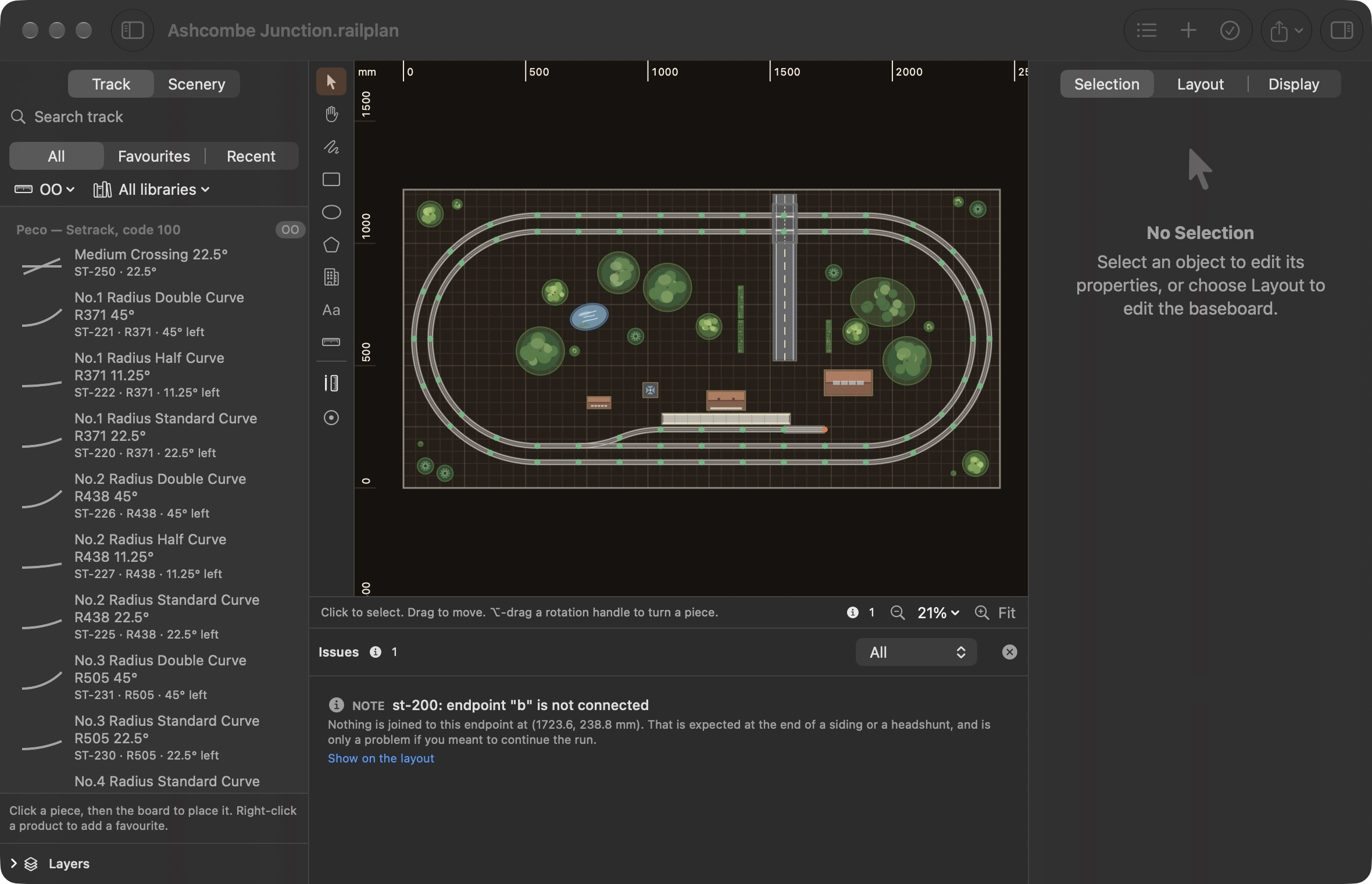
Exports and printed plans are always dark lines on white, whichever appearance you work in.
Accent colour
The app's own accent is a burnt orange. If you have chosen an accent colour in System Settings → Appearance, Gauge Buddy uses yours for controls, and for selection outlines on the canvas where it is clear enough against the board. Otherwise selection outlines are blue.
Increase Contrast and Reduce Transparency
Gauge Buddy respects both settings in System Settings → Accessibility → Display.
| Setting | Effect in Gauge Buddy |
|---|---|
| Increase Contrast | Stronger grid lines, rails, board edges and selection outlines on the canvas, in both appearances. |
| Reduce Transparency | The catalogue and inspector use solid backgrounds. |
Working from the keyboard
The canvas can be worked without a pointer.
| To | Press |
|---|---|
| Move focus to the canvas | ⌥⌘C (View → Focus Canvas) |
| Select the next or previous object | ⇥ Tab / ⇧⇥ |
| Leave the canvas | ⌥⇥ / ⇧⌥⇥ |
| Select everything | ⌘A |
| Move the selection | Arrow keys; hold ⇧ for 1 mm |
| Find an object by name | ⇧⌘O |
| Place track by typing coordinates or choosing a connector | ⇧⌘P |
A focus ring shows when the canvas has keyboard focus. While a text field is being edited, keys such as ⌘A and Delete act on the text as usual.
See Keyboard Shortcuts for the full list.
VoiceOver and other assistive technology
Each visible, unlocked object on the canvas is available to assistive technology as its own element, with a label that identifies it and a value giving its position and whether it is selected. Activating an element selects the object and brings it into view; a Show Object Actions action opens its context menu.
The object list (⇧⌘O) and precise placement (⇧⌘P) are the most direct ways to find objects and place track without using the canvas.
If something in Gauge Buddy does not work well with VoiceOver or another assistive technology, please tell us. It helps us improve it.
Customising the window
- Drag the dividers to resize the catalogue, inspector and issues list. Sizes and visibility are remembered.
- Control-click the toolbar to choose which buttons it shows.
- Use View → Enter Full Screen for the largest canvas.