
Baseboards
The baseboard is the surface your layout sits on. It can be a single rectangle, or several named sections with any outline, including holes.
Layout coordinates are measured from the bottom-left corner of the board, so a position reads directly as "millimetres from the corner".
A simple board
For a single rectangular board, open the Layout tab of the inspector and type a Width and Height. The Area is shown underneath.
Editing baseboards
For anything more, choose Layout → Baseboards, or click Edit Baseboards… in the Layout tab.
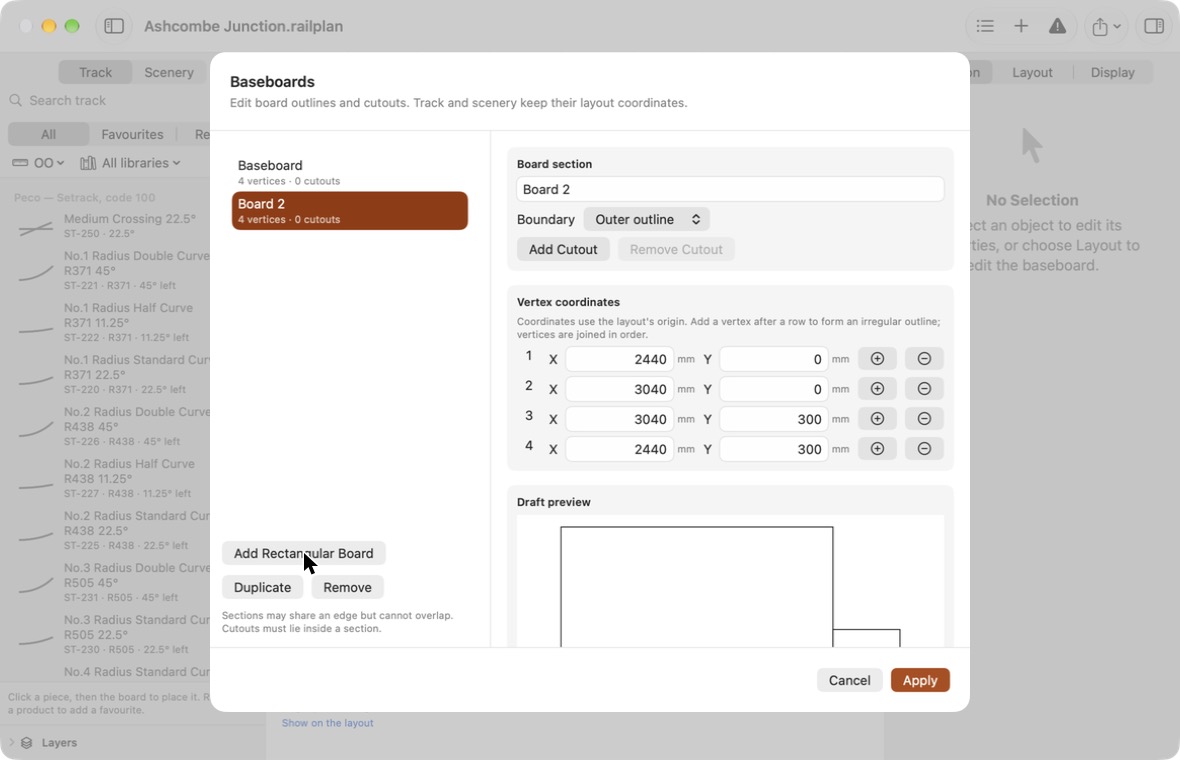
The list on the left shows each board section. Select one to edit it on the right.
| To | Do this |
|---|---|
| Add a section | Click Add Rectangular Board. A 600 × 300 mm board is placed beside the existing ones. |
| Copy a section | Select it and click Duplicate. |
| Remove a section | Select it and click Remove. At least one section must remain. |
| Rename a section | Type in the Board section field. |
| Reshape a section | Edit the Vertex coordinates. Corners are joined in order. |
| Add a corner | Click + on a row to insert a new corner halfway along the edge after it. |
| Remove a corner | Click − on its row. A section keeps at least three corners. |
The Draft preview shows the result as you work. Nothing changes in your layout until you click Apply, which is a single step you can undo. Cancel discards the draft.
Track and scenery keep their positions when you change the boards.
L-shapes and odd outlines
Either add a second rectangular section that shares an edge with the first, or add corners to one section to trace the outline you want.
Sections may share an edge but cannot overlap. If they do, the sheet explains the problem and Apply is unavailable until it is fixed.
Cutouts
A cutout is a hole in a board: an operating well, an access hatch or a lift-out section.
- Select the board section.
- Click Add Cutout.
- Choose the cutout from the Boundary menu and edit its corner coordinates.
A cutout must lie inside its section. To remove one, choose it in the Boundary menu and click Remove Cutout.
What boards affect
- Usable area is worked out from the actual surfaces, less any cutouts.
- Issues reports track or scenery that leaves the board, crosses a cutout or bridges a gap between sections. See Checking Your Layout.
- Reach zones use board edges, including cutout edges. Changing a board means reviewing them. See Reach Zones.
- Exports and prints show the outlines, joins between sections and cutouts.