
Rooms, Doors & Aisles
Drawing the room around your layout lets Gauge Buddy check that the boards fit, that doors can open, and that you have left yourself somewhere to stand.
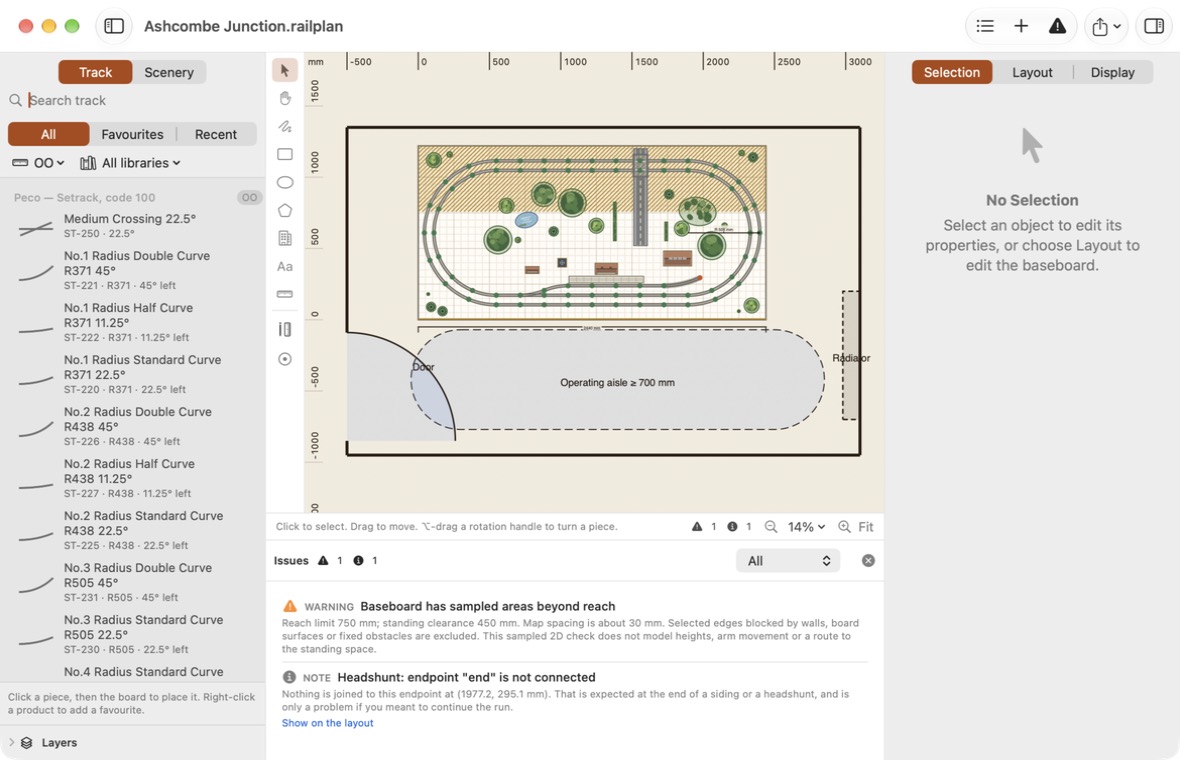
Room measurements are real dimensions in your display units. They have nothing to do with your modelling scale.
Setting up the room
Choose Layout → Room and Obstacles, or click Edit Room and Obstacles… in the Layout tab of the inspector.
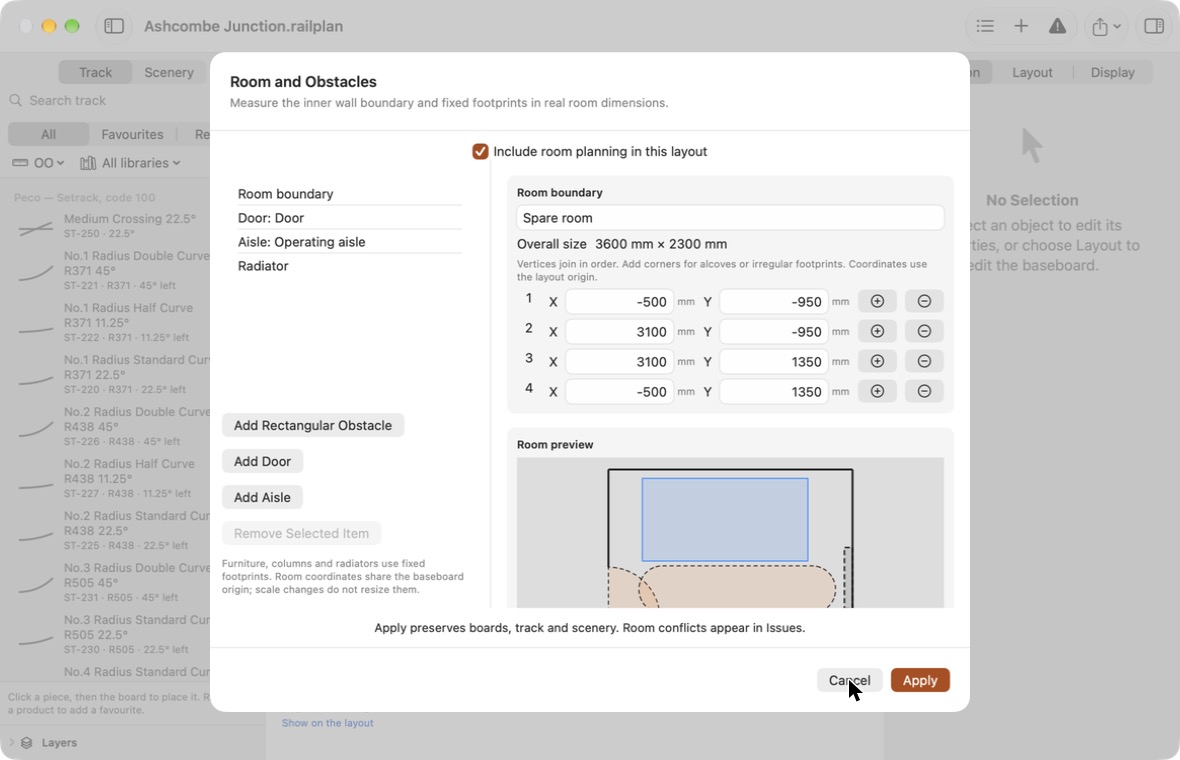
Tick Include room planning in this layout, then work through the list on the left.
The room boundary
Select Room boundary and enter the corners of the room. Measure along the inner faces of the walls. The overall size is shown above the coordinates.
Room coordinates share the baseboard's origin, so the room's position relative to the board is part of what you enter. Add corners with + for alcoves, chimney breasts and other irregular shapes.
Fixed obstacles
Click Add Rectangular Obstacle for anything that takes up floor space and cannot move: a column, a radiator, a boiler cupboard, fitted furniture. Give it a name and edit its corners.
Doors
Click Add Door to reserve the space a door needs to open.
| Setting | Meaning |
|---|---|
| Hinge X and Hinge Y | Where the hinge is. Put it on a wall. |
| Leaf width | The width of the door. |
| Closed angle | The direction the door points when shut. |
| Swing angle | How far it opens. A negative angle swings the other way. |
Aisles
Click Add Aisle to reserve a straight walking route, such as the operating space in front of the layout. Enter where it starts and ends and its Minimum clear width. For a route with a bend, add one aisle per straight section.
Applying
The Room preview shows the draft: a solid outline for walls, dashed shapes for obstacles and aisles, arcs for door swings and filled areas for baseboards. Apply saves it as one step you can undo and leaves your boards, track and scenery where they are. Cancel discards it.
What is checked
Problems appear in the issues list:
| Issue | Meaning |
|---|---|
| Outside the room | A board extends beyond the room boundary. |
| Fixed obstacle conflict | A board touches an obstacle. An obstacle that sits wholly inside a board cutout is fine. |
| Door swing conflict | A wall, board or obstacle is in the way of a door. |
| Aisle clearance conflict | A wall, board or obstacle intrudes on an aisle. |
Not yet checked
Conflicts between two doors, between a door and an aisle, and anything to do with height are not checked.
The Room layer
The room is drawn on its own Room layer. Hide or lock it from the layer list. Hiding the layer does not switch off the checks.
Printing and exporting the room
Exports and prints are cropped to the baseboard by default. To include the room, turn off Crop to the baseboard. For PDF and printing, also make sure Room is ticked in the layer list. See Printing a Plan.