
Selecting & Editing
Selecting
| To | Do this |
|---|---|
| Select an object | Click it with the Select tool (1). |
| Add to or remove from the selection | ⇧-click. |
| Select everything editable | ⌘A while the canvas has focus. |
| Step through objects | ⇥ Tab and ⇧⇥ while the canvas has focus. |
| Select a whole run of joined track | Select one piece, then Layout → Select Connected Track. |
Objects on a hidden or locked layer cannot be selected.
When several objects are selected, the inspector shows what they have in common. Where they differ it shows Multiple values.
Moving
- Drag a selected object to move it.
- Arrow keys nudge by one grid step. Hold ⇧ to nudge by 1 mm.
- Type exact x and y values in the inspector.
Turn on Snap to grid in the Layout tab, or from the Layout menu, to make dragged objects land on grid lines.
Rotating and mirroring
| To | Do this |
|---|---|
| Rotate 22.5° | [ or ], or Layout → Rotate 22.5° Left / Right |
| Rotate 1° | ⇧[ or ⇧] |
| Rotate 90° | Layout → Rotate 90° Left / Right |
| Rotate freely | ⌥-drag the rotation handle above the selected object |
| Rotate to an exact angle | Type it in the Rotation field of the inspector |
| Mirror | M, or Mirror / Opposite Hand in the inspector |
Cut, copy and paste
⌘X, ⌘C and ⌘V work on the canvas as they do everywhere else. A selection can mix track, flexible track and scenery.
Pasting keeps the pieces in the same arrangement, with their joints intact. You can paste into a different layout: the track libraries the selection needs are copied into that layout along with it.
Right-click the canvas for Duplicate, Rotate, Mirror / Opposite Hand, Move to Layer and Delete.
Placing track precisely
Choose Layout → Place Track Precisely (⇧⌘P), or click Place Track in the toolbar.
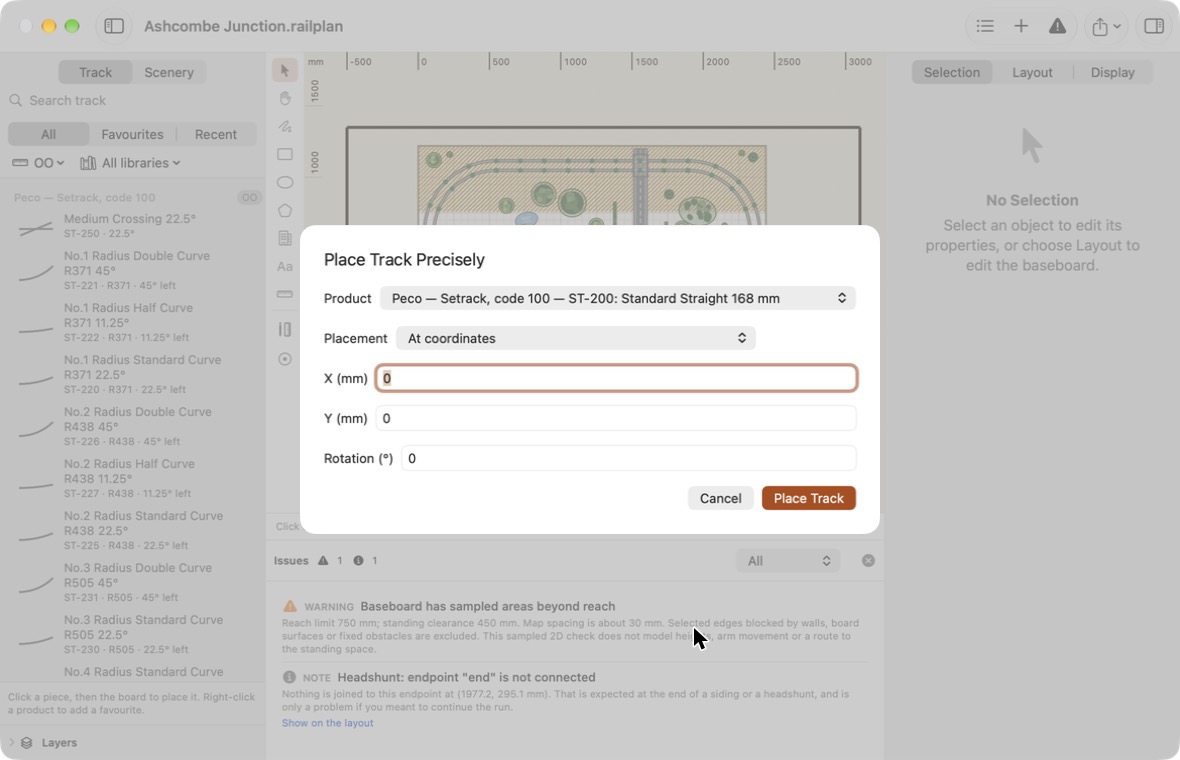
Choose a Product, then use the Placement menu:
| Placement | What happens |
|---|---|
| At coordinates | Enter X, Y and rotation, in your display units and degrees. |
| A free connector | The menu lists every free connector in the layout by piece, position and connector letter. Choose one, then choose which connector of the new piece should meet it. The new piece is placed exactly. |
If the values cannot be used, the sheet says why and nothing is placed. This sheet places sectional track; flexible track and scenery are created with their own tools.
The object list
Choose View → Objects in This Layout (⇧⌘O), or click Objects in the toolbar.
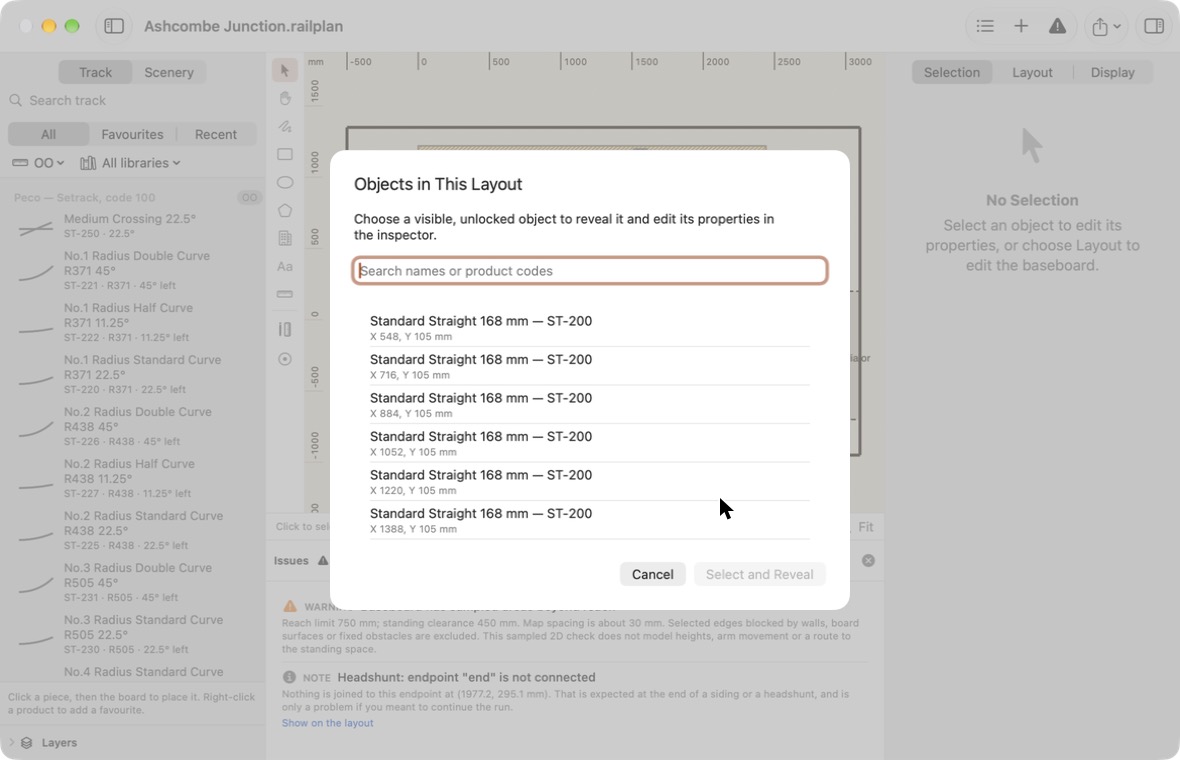
Type to search by name, product code or group name. Each row shows the object's position, which helps when the same product appears many times. Choose a row and click Select and Reveal to select it and bring it into view.
Naming things
Any object can be given a Name in the inspector. Names appear in the object list and the issues list, which makes "the headshunt" much easier to find than "the fourth straight".
Names are saved when you press Return or click elsewhere. Press Esc to put the old name back.