
Track
Sectional track in Gauge Buddy comes from track libraries: catalogues of real products with their published dimensions. A piece keeps the exact shape its library gives it. Moving or turning it never changes that shape.
Finding a piece
Open the catalogue (⌥⌘L) and choose Track at the top.
- Search matches names and product codes, so typing
ST-241orturnoutboth work. - The scale menu limits the list to one scale. It starts on your layout's scale.
- The library menu shows one track system or all of them.
- Favourites and Recent keep the pieces you use most within reach. Right-click a piece to add it to Favourites.
Rest the pointer on a piece for its details: full name, dimensions, what it joins to, how many of a curve make a full circle, and any note from the manufacturer's data. If the piece is tighter than your layout's minimum radius, the card warns you before you place it.
Placing a piece
- Click a piece in the catalogue to arm it.
- Click on the board.
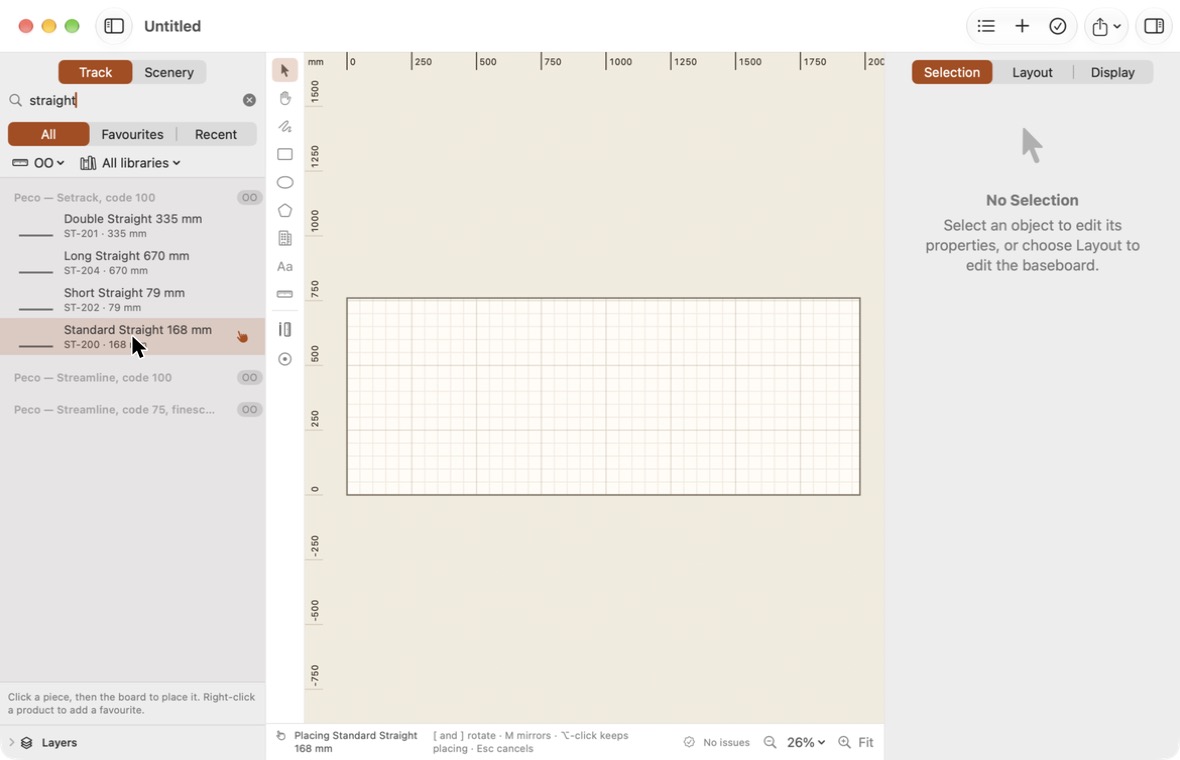
While a piece is armed:
| To | Do this |
|---|---|
| Rotate by 22.5° | [ or ] |
| Rotate by 1° | ⇧[ or ⇧] |
| Mirror | M |
| Place and keep the piece armed | ⌥-click |
| Stop placing | Esc |
Joining pieces
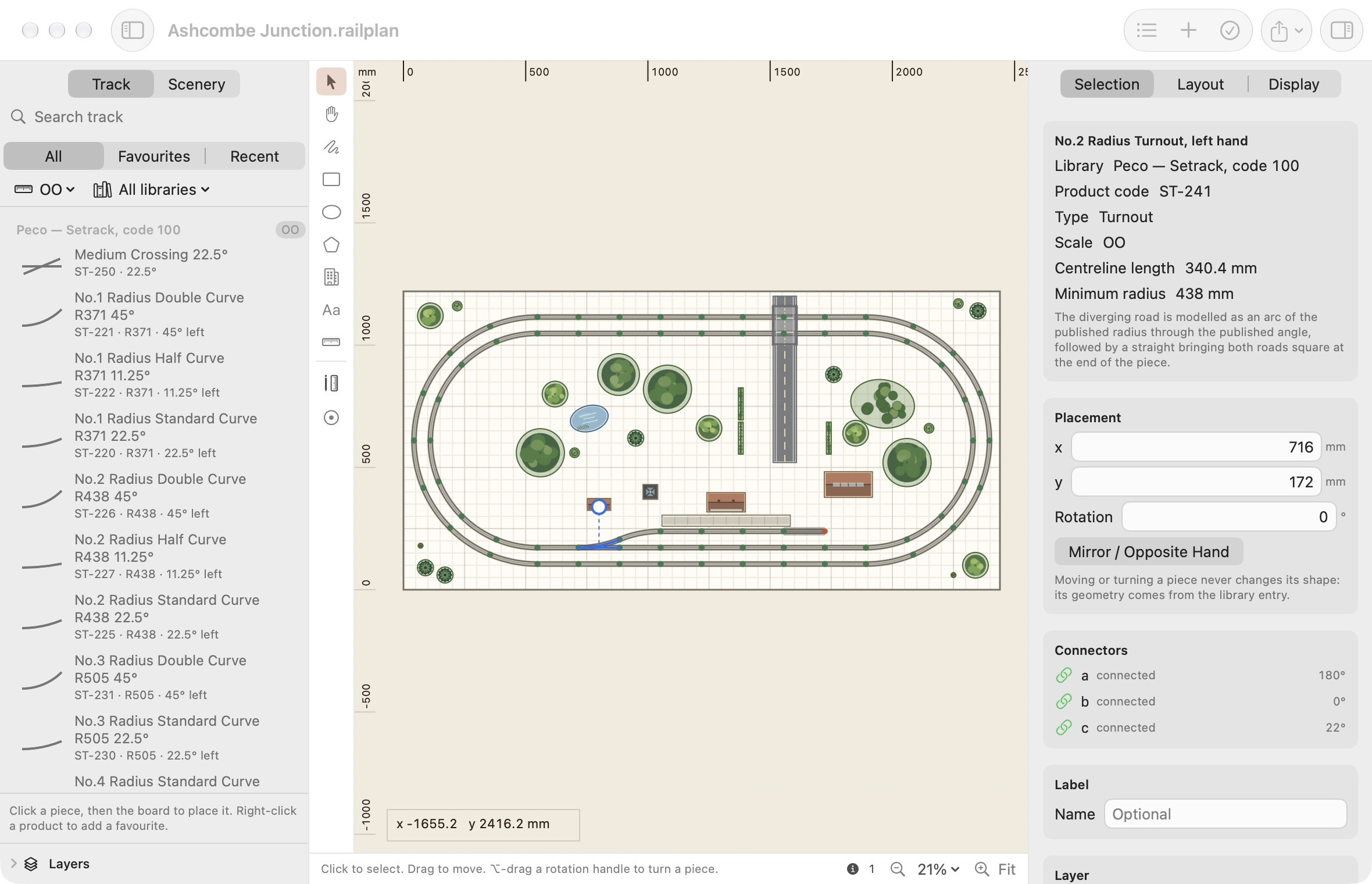
Bring an armed piece close to a free connector and Gauge Buddy offers the joint. Click, and the new piece is placed so the two connectors meet exactly, with no gap and no kink.
The same happens when you drag a piece that is already on the board towards another.
Connectors are drawn as small dots at the ends of each piece: one colour when free, another when joined. Selecting a piece lists its connectors in the inspector with the state of each.
Ignoring snapping
Hold ⌘ while you drag to place a piece freely, without it snapping to a nearby connector.
When a joint is refused
Gauge Buddy will not force two pieces together. If a joint cannot be made honestly, it says why:
| Reason | What to do |
|---|---|
| The piece would need swinging round | Rotate it with [ or ], or mirror it with M, and try again. |
| The gauges do not match | The two pieces are for different gauges and cannot be joined. |
| The scales differ | Turn on Allow track from other scales in the Layout tab of the inspector if you mean to mix them. |
Joining pieces from two different track systems of the same gauge is allowed, and is noted in the issues list as a reminder that you may need transition joiners.
Turnouts and mirroring
Turnouts have three connectors: the toe, the straight road and the diverging road.
Pressing M on a turnout swaps it for the opposite-handed product from the catalogue, where one exists. A mirrored left-hand turnout becomes the right-hand product, with the right product code, so your parts list stays correct.
Minimum radius
Each scale has a default minimum radius. To set your own, open the Layout tab of the inspector and turn on Set a minimum for this project.
Curves tighter than the minimum are flagged in the catalogue's hover card and reported in the issues list once placed.
Mixing scales
By default the catalogue and the joining rules assume one scale. To use track from another scale, turn on Allow track from other scales in the Layout tab. Mixed scales are still reported in the issues list so they are never a surprise.
Part labels and connectors
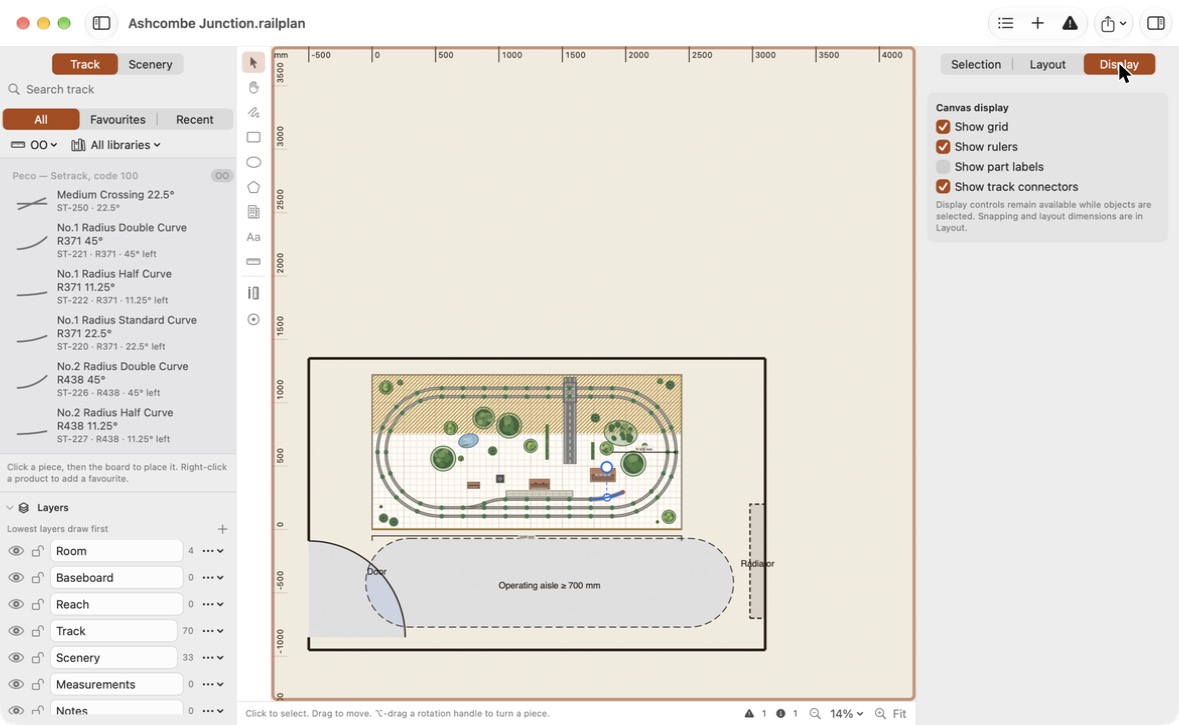
The Display tab of the inspector controls what is drawn on the canvas:
| Option | Shows |
|---|---|
| Show grid | The background grid. |
| Show rulers | The rulers along the top and left. |
| Show part labels | Product codes beside each piece. |
| Show track connectors | The dots at each track end. |