
References & Dimensions
References are images you trace over, such as a scan of a published track plan or a survey of the room. Dimensions are measurements and notes drawn on the plan for use during construction.
Both are managed from Layout → References and Dimensions.
Reference images
Importing
- Open Layout → References and Dimensions and choose the References tab.
- Click Import Image or PDF… and choose a file. For a PDF, set which PDF page to use first.
The image is copied into your layout file, so the layout still opens correctly if the original is moved or deleted. The original file is not changed.
Calibrating
An imported image has no real-world size until you tell Gauge Buddy what a known distance on it measures.
- Choose point A and click a point on the image, then choose B and click a second point. Pick two points whose real distance apart you know, as far apart as practical.
- Enter that distance in millimetres.
- Click Calibrate from A–B and check the overall size it reports.
Positioning
Set the reference's origin, rotation and opacity so it lines up under your track. Lock it once it is right, so you cannot move it by accident. To change a locked reference, unlock it and click Apply, then reopen the sheet.
You can also position a reference directly on the canvas in Construction mode.
What references are not
A reference is a picture to work over. Gauge Buddy does not trace it, turn it into track, or correct perspective in a photograph. A PDF page is brought in as an image.
Dimensions
Choose the Dimensions tab.
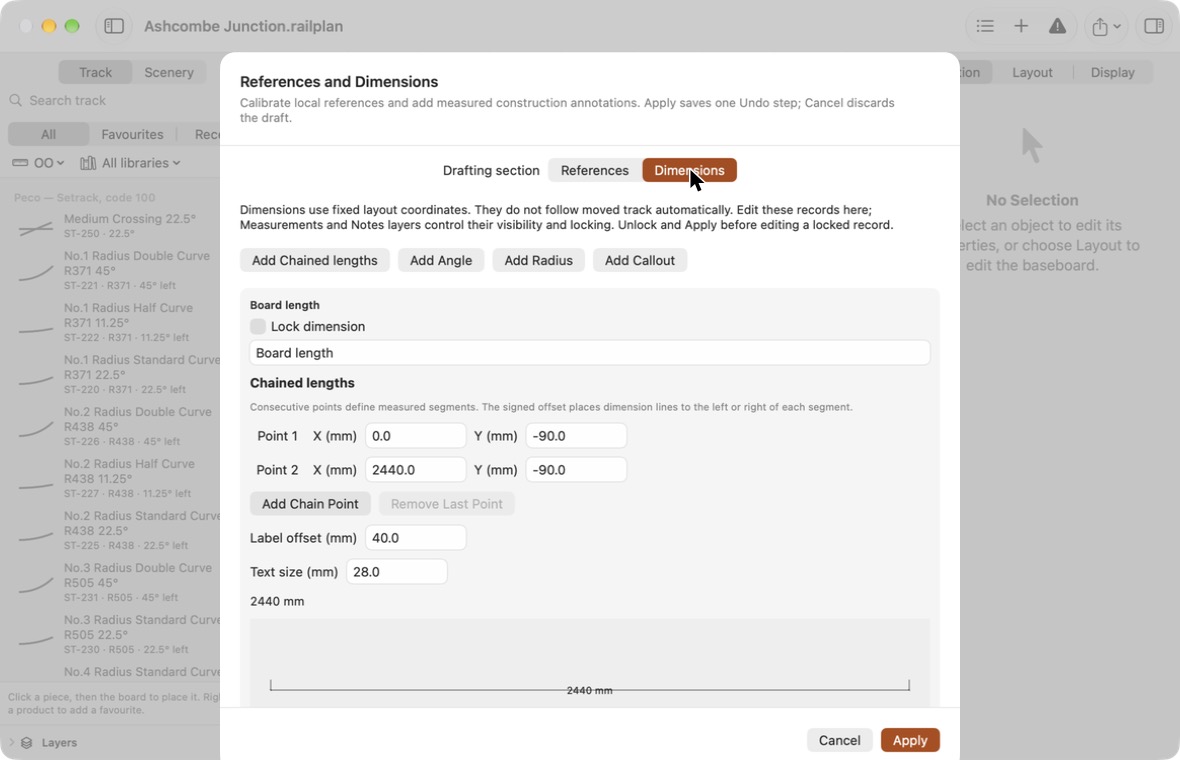
| Button | Draws |
|---|---|
| Add Chained lengths | One or more measured lengths end to end. Use Add Chain Point to extend the chain. |
| Add Angle | The angle between two arms meeting at a point. |
| Add Radius | A radius from a centre to a point on the curve. |
| Add Callout | A note with a leader line pointing at something. |
For each dimension you can set its name, the coordinates of its points, the Label offset (how far the text sits from the line; a negative value puts it on the other side) and the Text size. Lock dimension protects it from accidental changes.
A preview at the bottom shows the dimension with its measured value.
Click Apply to save all your changes as one step you can undo. Cancel discards them.
Dimensions do not follow track
A dimension is fixed to coordinates on the layout. If you later move the track it was measuring, the dimension stays where it was. Check your dimensions after rearranging.
Working on the canvas
Choose Tools → Construction, or click the Construction button below the tools beside the canvas, to place and adjust dimensions and references directly.
| To | Do this |
|---|---|
| Draw a chained length | Click each point, then press Return. |
| Draw an angle | Click a point on one arm, the vertex, then a point on the other arm. |
| Draw a radius | Click the centre, then a point on the curve. |
| Draw a callout | Click the tip, the elbow, then where the text should sit. |
| Remove the last point while drawing | ⌫ Backspace |
| Cancel | Esc |
| Adjust a dimension | Drag its round point handles, or the diamond handle to move its label. Drag the dimension itself to move the whole thing. |
| Move a reference | Drag it, if it is unlocked. Track does not move with it. |
| Step through dimensions | ⇥ Tab |
| Nudge | Arrow keys move by the grid step; hold ⇧ for 1 mm. |
| Edit exact values | Double-click a dimension. |
Each completed action is one step you can undo.
Layers
Dimensions are drawn on the Measurements layer and callouts on the Notes layer. References have their own layer. Hide or lock them from the layer list.
Printing and exporting
Dimensions are included in SVG, PNG and PDF output when their layer is included.
References are left out unless you ask for them: tick Include reference underlays in the export or print sheet. For PDF and printing, the References layer must be ticked as well.