
Flexible Track
Flexible track is drawn rather than placed. A run can be a straight, a single curve, or a compound path made of several curves joined smoothly.
Drawing a run
- In the catalogue, click a flexible track product. This tells Gauge Buddy which product the run represents, so it knows the length it is sold in.
- Choose the Flexible Track tool (3).
- Drag on the board from where the run starts to where it ends.
- Drag the handle in the middle of the run to bend it into a curve.
Start or finish a run on a free connector and it joins to that piece.
The inspector
Select a flexible run to see and edit it exactly.
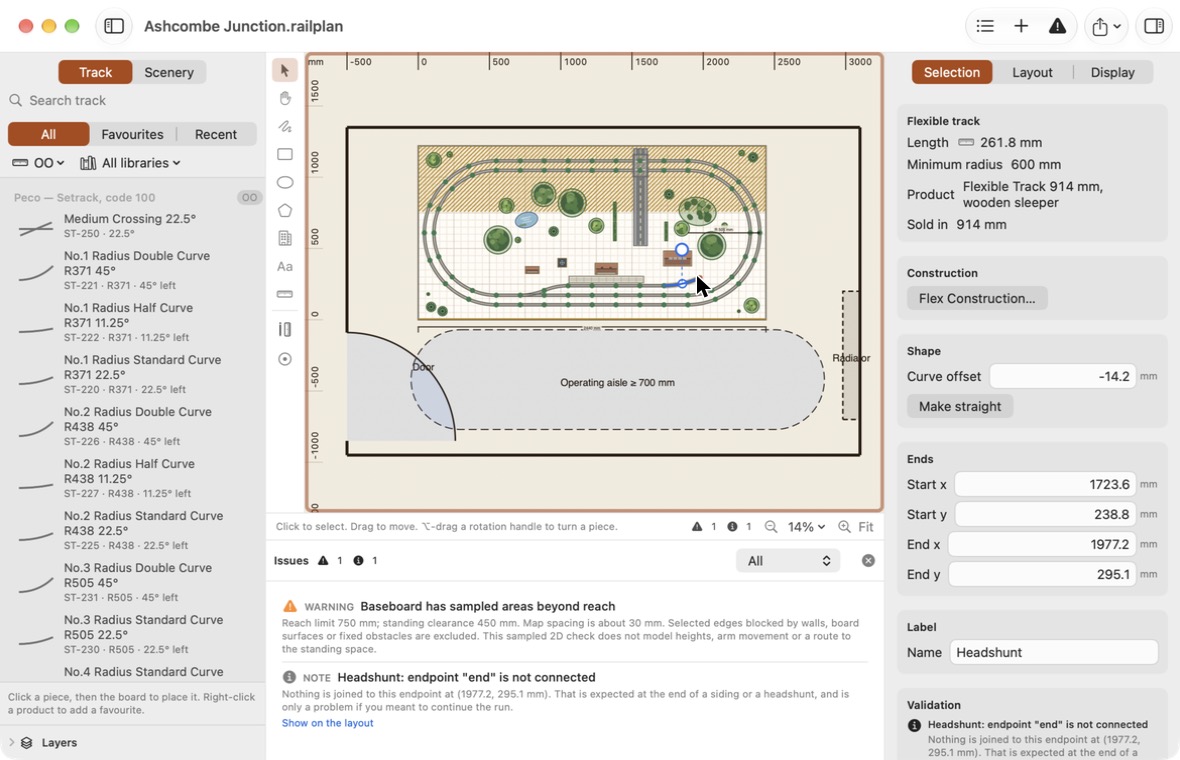
| Field | Meaning |
|---|---|
| Length | The length of the run along its centreline. |
| Minimum radius | The tightest radius anywhere on the run. |
| Product and Sold in | The flexible product, and the standard length it is sold in. |
| Curve offset | How far the middle of the run is pulled off the straight line between its ends. |
| Make straight | Removes the curve. |
| Start and End | The exact coordinates of each end. |
| Name | An optional name, shown in the issues list and the object list. |
Flex Construction
For anything more exact than dragging a handle, select the run and click Flex Construction… in the inspector, or choose Layout → Flex Construction.
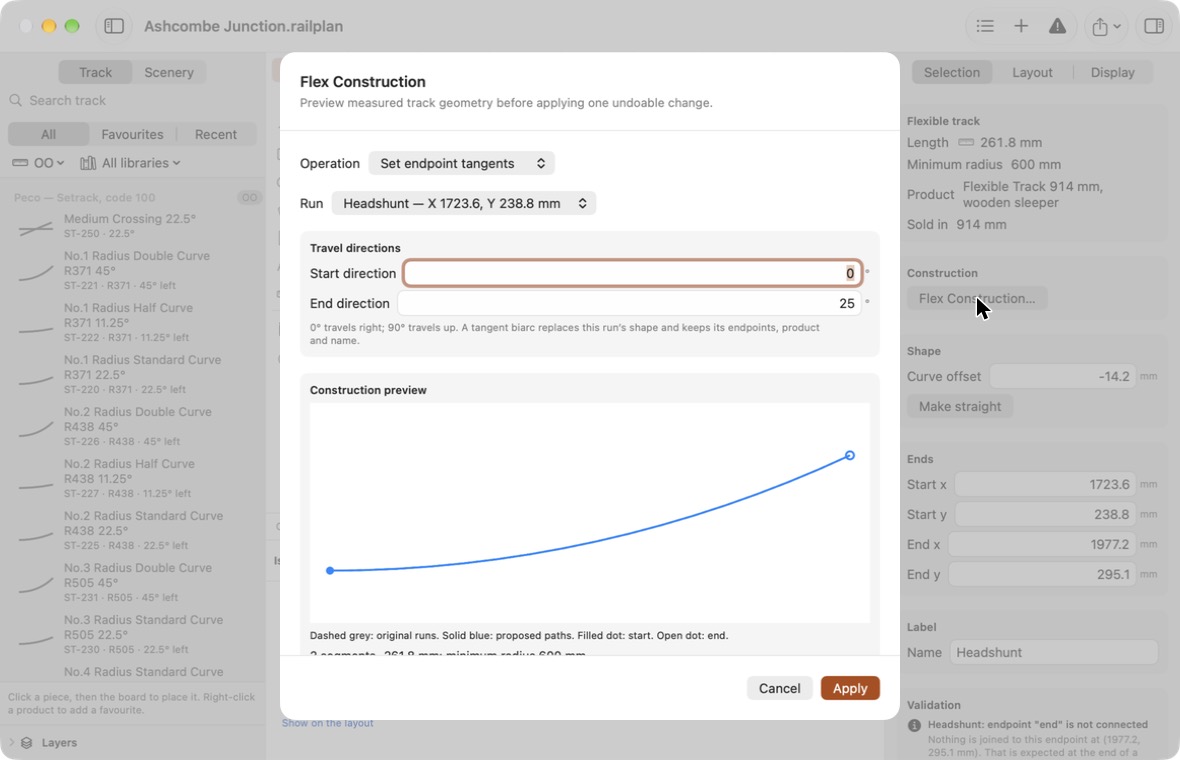
Choose an Operation, review the measured preview, then click Apply. Each operation is one step you can undo. Cancel discards it.
| Operation | What it does |
|---|---|
| Set endpoint tangents | Enter the direction of travel at each end. The run becomes a smooth pair of arcs that leaves and arrives in those directions, keeping its ends, product and name. 0° travels right; 90° travels up. |
| Split run | Cuts a run in two at an exact distance from its start. Both pieces keep their product. |
| Trim run | Keeps the part of a run between two distances from its start. Trimming moves the ends, so it can disconnect neighbouring track. |
| Join runs | Makes one run out of two that meet end to end in the same direction. Both must be the same product and on the same layer. The first run's name is kept. |
| Bridge free connectors | Connects two free connectors that you choose with a new run that meets both in the right direction. |
| Create parallel track | Creates a second, independent run alongside at a centreline offset you enter. Positive is to the left of the direction of travel, negative to the right. |
| Create transition | Extends a gradually tightening curve from a free connector. You enter its length, the radius it should reach, and whether it turns left. |
The preview shows the proposed path with its length and tightest radius, and warns if it is tighter than your minimum.
What construction does not do
- Transitions are built from a series of short arcs. They approximate a gradually changing curve rather than being a true continuous spiral.
- Parallel spacing does not check clearance for your rolling stock on curves.
- Constructed shapes do not follow neighbouring track if you move it later. Check Issues after applying.
Moving and reshaping
A simple run can be reshaped by dragging its handle. A compound path, made by a construction operation, keeps its exact geometry: you can move and rotate it on the canvas, and use Flex Construction to change its shape.
Compound paths keep their geometry when you save, copy and paste, export or print.
Buying flexible track
Because each run knows its product and length, Inventory & Purchasing can work out how many lengths to buy and how to cut them, reusing offcuts where it can.